
Hou2Touch 3: Interactive Systems and Pipelines
My patches work, but my projects don't hold together
You take on interactive work with sensors, data and sound, across several programs. Each project grows on its own, and there's no structure that makes it reusable and reliable.
- Structure:
- 5 modules, 10 lessons
- Video:
- 130 videos, 42 h in total
- Pace:
- Weekly · all on request
- Access:
- 2 years
- Assignments:
- in almost every lesson
- Language:
- English
- Level:
- Advanced
About the course
Aboutthecourse
- 01
the starting point
This advanced Hou2Touch level develops pipeline thinking first, centred on cross-application architecture, reusable TouchDesigner and Houdini digital assets, and programmable control systems.
- 02
what you build
Students then apply these foundations to sensor-driven interaction, web-data visualisation, and audiovisual performance workflows with Ableton Live and Bitwig. The course gives greatest weight to practical interactive, data, and sound projects in TouchDesigner, with the Houdini–TouchDesigner pipeline and an introductory extension into Unreal Engine as a third-tool integration.
Courseaims
- 01
To develop an understanding of how to build a large interactive TouchDesigner project from reusable parts: modular architecture, digital assets in TouchDesigner and Houdini, control interfaces and presets.
- 02
To develop practical skills in building interactive and performance projects: depth-sensor and hand-tracking interaction, data visualisation from web APIs, sound synthesis and sequencing, control from Ableton Live and Bitwig, and an introduction to sending Houdini work to Unreal Engine.
- System Architecture and UI in TouchDesigner · 4 h 27 min
- Digital Assets in Houdini and TouchDesigner · 4 h 7 min
- Building TouchDesigner Preset System. Storage. UI. · 4 h 32 min
- Depth Sensors (Kinect, Realsense, Zed2) · 4 h 12 min
- Interactivity and 3D Interfaces in TouchDesigner · 5 h 26 min
- Dataviz in TouchDesigner: Stock Exchange Asset · 3 h 28 min
- Dataviz in TouchDesigner: Interactive World Map · 5 h 32 min
- Sound Synthesis in TouchDesigner · 4 h 30 min
- TouchDesigner integration with Ableton and Bitwig · 4 h 35 min
- Houdini to Unreal Engine (HDA, Niagara, VAT) · 1 h 12 min
Who this course is for
For you if
- AV artists and musicians — Your Ableton sessions and your visuals should run as one system: here you connect them with TDAbleton, use cue points and audio levels to drive scenes, and control Bitwig from TouchDesigner.
- Installation artists — You need interaction that reacts to people: here you bring Kinect, RealSense and depth-camera data in, and turn a tracked fingertip into clickable 3D controls.
- 3D Artists — You work procedurally: here you package reusable digital assets, automate tasks with Python shelf tools and PDG, and send terrain, particles and fractured geometry to Unreal Engine.
- Motion Designers — You design systems, not single pieces: here you request web-API data such as stock prices and weather, parse the JSON and show it as an animated 3D chart and an interactive globe.
- VJs — You switch visuals live and fast: here you build control interfaces and presets that save a project's state and recall it with Python, plus a 3D movie gallery you pick clips from by clicking.
Not for you if
- –you do not meet the requirements in “Before you start”
- –you have neither taken Hou2Touch 1: Foundations and Hou2Touch 2: Procedural 3D & Simulation nor gained equivalent experience
Before you start
Completion of LEVEL101 and LEVEL102, or an equivalent working knowledge of basic TouchDesigner network construction, CHOP channels and parameter exports, basic 3D rendering workflow, Houdini procedural SOP modelling with attributes, audio analysis networks, and audio-output routing.
Prerequisites:Hou2Touch 1: Foundations↗, Hou2Touch 2: Procedural 3D & Simulation↗
What you will be able to do
- 01Design a modular TouchDesigner project on the Model-View-Controller pattern, with reusable components, shared references and LTC timecode-driven cueing.
- 02Build control interfaces, including interfaces generated from component parameters, and preset systems that save a project's state to storage and JSON files and recall it with Python.
- 03Package reusable digital assets in TouchDesigner and Houdini, and automate Houdini work with Python shelf tools, asset callbacks and PDG.
- 04Bring Kinect, RealSense and stereo depth-camera data into TouchDesigner, record and clean Kinect point clouds, rebuild them as procedural looks in Houdini, and turn tracked hand movement into MIDI notes.
- 05Build clickable 3D interface controls and an interactive 3D movie gallery in TouchDesigner, operated by render picking or by a tracked fingertip from a depth camera or an ordinary camera.
- 06Request web-API data (stock prices, locations, weather), parse the JSON with Python and show it as an animated 3D chart and an interactive globe.
- 07Build sound synthesisers and sequencers in TouchDesigner, from oscillators, wave folding and wavetables to sample playback and step and Euclidean sequencers, and play them through VST instruments and Ableton Live.
- 08Connect Ableton Live to TouchDesigner with TDAbleton and use its cue points, MIDI and audio levels to schedule and drive visual scenes, and control Bitwig transport and tracks from TouchDesigner.
- 09Prepare Houdini terrain, particle simulations and fractured geometry for Unreal Engine as landscape and curve assets and particle caches.
Programme
01System Architecture and Assets
Lesson 1. System Architecture and UI in TouchDesigner · 15 videos · 4 h 27 min
Video 1. Planning modular projects in TouchDesigner with MVC; Refactoring control channels · 8 min
In this lesson we learn to plan a TouchDesigner project as three separate parts: content generation, control sources and outputs. We split a sound-reactive patch this way, agree channel names so a controller can be swapped, and look at a larger media server built on the same Model View Controller idea.
Video 2. Sound-Reactive Component Design · 18 min
In this lesson we turn sound-reactive networks into reusable components. Each one is a black box: a hidden network with a few public controls, inputs and outputs, made with custom parameters. We pack a noise generator and a sound analyser this way, and give the analyser a built-in audio fallback for when nothing is connected.
Video 3. Transferring TOP, CHOP and DAT data in TouchDesigner · 12 min
In this lesson we learn how to move data between parts of a modular system, inside one project and between separate programs or computers. We compare ways to send images, numeric channels and tables, send a text message over the network, and see why synchronising playback needs a different method than sending data.
Video 4. Building cached LTC timecode visualizer in TouchDesigner · 12 min
In this lesson we build a compact LTC player: a timecode generator with a display of hours, minutes, seconds and frames, and a reset button. The display avoids heavy text rendering by reusing a cache of ready-made two-digit numbers, so a changing readout stays cheap.
Video 5. Building an LTC reader in TouchDesigner · 12 min
In this lesson we build the receiving side of timecode synchronisation. We decode incoming LTC into hours, minutes, seconds and frames, convert them to one running frame number, and prepare a table of cue segments with start and end timecodes. The frame number is the signal on which cue control is built.
Video 6. Generating timecode segment channels in TouchDesigner · 18 min
In this lesson we turn a table of segments into timing signals driven by running timecode. For each segment we create start and end pulses, a frame counter, progress from 0 to 1 and a playing flag, then test them so that events and animation can follow the timecode.
Video 7. Managing references in TouchDesigner with local variables; OP shortcuts · 14 min
In this lesson we replace fragile direct paths with three ways to share references and values: local variables that every component below a chosen level can read, global shortcuts for operators, and internal shortcuts whose custom parameters store data. We build each one and use it to drive a parameter.
Video 8. Organising modules in TouchDesigner; Saving timestamped TOP output · 19 min
In this lesson we keep everything a modular project refers to in one place: operator paths, asset library folders and reusable utility functions. We build this from text files, then use it from a button that saves the final image under a timestamped name.
Video 9. TouchDesigner UI approaches and parameter controls · 10 min
In this lesson we compare ways to build a controller interface for a component. We start with the fastest, a panel that exposes chosen parameters, then weigh simple elements against styled widgets, custom interfaces drawn in 3D, web pages and external controllers by setup time, look, speed and programming effort.
Video 10. TouchDesigner UI elements: parameter pages; Slider widget anatomy · 11 min
In this lesson we tour the basic interface elements and the newer styled widgets: sliders, buttons and input fields, their settings, and how a slider value links two ways to a parameter. We style a slider widget, look inside it, and see why an input field needs a different method to set its value.
Video 11. Building TouchDesigner audio filter controls with RMS preview · 29 min
In this lesson we build a reusable control for one frequency range of an audio analysis: sliders drawn over the spectrum and a level graph set cutoff and trigger threshold by eye, and buttons choose the filter type. One mapping feeds all values to the analysis. We start with answers to chat questions on audio analysis.
Video 12. Building a three-band audio analyzer in TouchDesigner · 19 min
In this lesson we finish a reusable audio analysis with three independent frequency ranges. Each range reports volume, triggers and a trigger count, with a smoothed light that flashes on every trigger. The ranges are colour-coded, merged under distinct names and packed into one interface.
Video 13. Routing audio controls in TouchDesigner; Clock dividers · 32 min
In this lesson we build a signal router between audio analysis and effects: buttons pick which signal modulates each of four effect channels, and a slider sets how long triggers decay. We add clock dividers, an idea from modular synthesis, that turn one trigger into slower ones at ratios from 2 to 64.
Video 14. Generating custom parameters from a table in TouchDesigner · 27 min
In this lesson we describe controls in a table (name, label, default, range and type) and generate model parameters from it with a short Python script. We also turn routing-channel names into a menu list, then check that the generated float and integer parameters have the right defaults, ranges and limits.
Video 15. Generating bound parameter sliders in TouchDesigner · 25 min
In this lesson we generate a slider interface from a model automatically: dropping a model component onto an interface component creates one slider for each numeric custom parameter. Each slider is copied from a hidden prototype, set up with label, range and value, bound two ways to its parameter, and arranged in a column.
Lesson 2. Digital Assets in Houdini and TouchDesigner · 15 videos · 4 h 7 min
Video 16. Building a TouchDesigner audio analyzer palette asset · 12 min
In this lesson we turn a TouchDesigner component into a reusable digital asset saved as a .tox file. We make it work standalone with a default input, give it an icon and help text, store it in a custom palette folder and drag it into a new project.
Video 17. Building a Houdini digital asset; Saving a TouchDesigner .tox · 19 min
In this lesson we compare reusable digital assets in Houdini and TouchDesigner. We package a parameterised Houdini network as an asset with its own name, version, inputs and controls, and see the locked and editable states. Then we save a TouchDesigner component as a tox file and load it back from disk.
Video 18. Saving images with Engine COMP in TouchDesigner · 7 min
In this lesson we move a blocking task out of an interactive TouchDesigner project: saving an image. An asset that runs isolated in a separate process receives the image, a trigger and a timestamp, then returns the file path and a finish signal, so the project keeps running smoothly. We also weigh when this is worth the cost.
Video 19. Browsing and installing Houdini assets; Installing Olib assets in TouchDesigner · 6 min
In this lesson we find ready-made digital assets in online libraries. In TouchDesigner we add a library browser to a project and install a component from it. In Houdini we sign in to Orbolt, filter free assets, download one and install it from the working folder.
Video 20. Protecting TouchDesigner projects using TouchDesigner Pro; CodeMeter component licensing · 4 min
In this lesson we look at how to protect a TouchDesigner project before handing it to a client. We set a password so the project opens only in Perform mode, give single components privacy by password or CodeMeter licence, and see what the Pro licence adds.
Video 21. Building a procedural Houdini Digital Asset · 26 min
In this lesson we build a procedural Houdini setup from two input shapes that makes extruded stone-like forms and matching wire geometry, shaped by transferred weights and measured areas. We add controls, split the result into stone and wire outputs, and save it as a versioned digital asset with a namespace and branch.
Video 22. Configuring Houdini digital asset properties; Handles and embedded files · 25 min
In this lesson we design a Houdini digital asset so that others can use it. We set its name, icon and connections, build a clear interface from internal controls with ranges, help and conditions, label inputs and outputs, add viewport handles and sliders, and embed scripts and resource files in the asset.
Video 23. Building a Python SOP plexus in Houdini · 20 min
In this lesson we finish editing and versioning a Houdini digital asset, then write a Python asset from scratch. The code reads the points, measures the distance between every pair and joins pairs within a minimum and maximum distance, with a limit on connections per point, all controlled from the asset interface.
Video 24. Building a Houdini shelf tool with Python · 29 min
In this lesson we create a Python shelf tool in Houdini called Curve Extruder. We configure the tool, read the active viewer and tell object level from geometry level, prototype the curve extrusion by hand, and make the tool use the selected curve or ask the user to pick one.
Video 25. Automating curve extrusion in Houdini · 20 min
In this lesson we automate curve extrusion with Houdini Python. A shelf tool takes the selected curve, creates an extruder object with its nodes, connects and lays them out, sets the display and render output, and points the curve import at the source by a relative path.
Video 26. Building a Houdini FBX merger shelf tool · 20 min
In this lesson we write a Houdini Python shelf tool that consolidates an imported FBX hierarchy. It finds every geometry object under the selected root, merges them into one geometry through relative paths, and keeps point and primitive groups and an object name attribute so each original object can be told apart.
Video 27. Collecting external files; Custom Houdini File menu command · 17 min
In this lesson we write a Houdini Python script that collects a project's external files. It lists every file reference, copies files from outside the project folder into it, relinks the paths and reports progress in the status line. Then we add the script to the File menu with an XML entry and test it.
Video 28. Randomizing Houdini digital asset float parameters via callbacks · 8 min
In this lesson we add a button to a Houdini digital asset that runs a Python callback. The callback finds its own asset, reads every parameter with its type and randomizes only the float values. We test the button and save the change into the asset definition.
Video 29. Houdini PDG pipeline: Karma renders to FFmpeg video · 21 min
In this lesson we build a procedural render-to-video pipeline with Houdini's task graph. We create one render task per frame, run the tasks in parallel on all but one processor core, then group the finished frames into one task that encodes a single movie with FFmpeg.
Video 30. Generating Houdini PDG geometry variations; Batch-exporting with ROP Geometry Output · 12 min
In this lesson we use PDG to automate variations of a simple generative geometry. We generate work items with a random seed, add a second variation for the search radius to get thirty combinations, drive the geometry from each item's attributes, and export every variant to disk with its own file name.
Lesson 3. Building TouchDesigner Preset System. Storage. UI. · 14 videos · 4 h 32 min
Video 31. Building a modulated slider in TouchDesigner; Visualising its value · 25 min
In this lesson we build a slider that can be driven by a chosen control signal. A menu lists the sources, four modes (none, add, subtract, multiply) combine the signal with the slider, the result is limited to the slider's range, and a green fill shows the current value.
Video 32. Replicate Modulation Widget using Template Table · 12 min
In this lesson we turn one modulation slider into four sliders generated from a template table. We handle control names with spaces, collect all outputs by a naming pattern, set minimum and maximum values, and keep outputs at a single sample so they stay stable when the frame rate changes.
Video 33. Python Dictionary. Preset System · 25 min
In this lesson we learn why a Python dictionary is the right container for presets: it holds mixed value types and nests. We read the custom parameters of an effect, store each parameter's name and value, and combine the data of two effects into one hierarchical preset.
Video 34. Saving named presets in TouchDesigner; Building operator parameter dictionaries · 23 min
In this lesson we build a save function for presets. A button gathers the parameter values of several effects into structured data, and a name field stores them in the component's storage that is saved with the project. We then fill a menu with the saved names, check the stored data and start reacting to a menu choice.
Video 35. Load Presets from the Node Storage · 12 min
In this lesson we load a preset back: a menu choice fetches the saved data from the component's storage, we walk through its levels to find the target components and parameter names, build each parameter from its stored name and restore the values, debugging the steps along the way.
Video 36. Exporting presets to JSON in TouchDesigner · 18 min
In this lesson we export presets to a JSON file. We replace object references with local names so the data can be written to disk, add a save button and a file path, collect all stored presets into one structure, write it as readable JSON and open the file in a text editor to check it.
Video 37. Serializing custom parameters with td.json in TouchDesigner · 13 min
In this lesson we use the built-in JSON helpers of TouchDesigner to capture settings as data. We export a single parameter, a whole custom page and a complete component, keep only the custom parameters, and compare how the nested structure grows at each of the three levels.
Video 38. Capturing parameter state with TD Functions in TouchDesigner · 6 min
In this lesson we meet the TouchDesigner Functions library and its helpers for parameter state. We read the documentation, capture the state of an operator's custom parameters as a dictionary, and see which fields it keeps: value, mode, expression, binding and default. We discuss how this can replace manual parameter loops in presets.
Video 39. Building parameter-info presets in TouchDesigner; Loading preset JSON · 19 min
In this lesson we rebuild the preset system on TouchDesigner Functions. Capturing and restoring a whole parameter state takes a few lines, we fix a variable error in saving, and we extend the system: presets are written to a JSON file, and a button loads a chosen file back into the preset menu.
Video 40. Exposing UI parameters; Binding the effect model · 11 min
In this lesson we prepare a complex TouchDesigner widget for hierarchical presets. We treat the widget as a black box and expose its state through its own parameters: effect mix, slider value, drop-down choice and button state are linked in both directions with the internal model and the interface.
Video 41. TouchDesigner. Hierarchical Presets Save Preset · 38 min
In this lesson we build the saving side of a hierarchical UI preset system. Each named scene is added to a shared library in the component's storage without losing earlier ones. A script finds every widget, asks it to save its own state and collects the results. We inspect the stored data and debug a save that failed.
Video 42. Loading UI presets into widgets in TouchDesigner · 33 min
In this lesson we build the loading side of the UI preset system. The saved scenes are listed in a menu; choosing one stores its content as the current state and triggers an update that applies each widget's saved settings. The interface is treated as a black box that other parts call through its own update behaviour.
Video 43. Saving and blending asset states in Houdini · 20 min
In this lesson we give a Houdini digital asset a save-and-blend feature. A button saves the current parameter values in the asset, a button strip blends between the saved and the current state from 0 to 100 percent, and the asset definition is saved to disk.
Video 44. Houdini. Customize MotionFX Menu · 17 min
In this lesson we explore the Houdini installation and learn what can be customised. We copy the XML definition of the Motion Effects menu to the user directory, compare the two ways its commands build an effect, add a custom filter command, and fix it over several reload-and-test runs.
02Interactivity
Lesson 4. Depth Sensors (Kinect, Realsense, Zed2) · 15 videos · 4 h 12 min
Video 45. Kinect Azure Sensor Workflows · 10 min
In this lesson we meet the Kinect Azure sensor. We set it up, look at the data it provides: depth, point cloud, colour, infrared and player index. Then we read the skeleton coordinates of one tracked person.
Video 46. Point Cloud Recording Preparation · 23 min
In this lesson we prepare a Kinect point cloud for recording. We pack its high-precision values into an 8-bit picture, crop the unused area, and write a short shader that removes invalid, too-near and too-far depth pixels, so the cleaned data can be recorded without losing detail.
Video 47. Exporting Kinect point clouds as OpenEXR in TouchDesigner · 21 min
In this lesson we export recorded Kinect point clouds as OpenEXR image sequences for Houdini. We see what recording costs in storage and speed, split two sensors into front and back images, keep the export inside the recorded frames, and run it frame by frame.
Video 48. Building a point-cloud surface from EXR in Houdini · 5 min
In this lesson we bring a recorded Kinect point cloud into Houdini. We build a grid surface at the detail we want, read the EXR image sequence and use its values to move the grid points into the recorded shape. The lesson ends with a chat answer on licences: these steps need no paid licence.
Video 49. Kinect Point-Cloud Projection · 22 min
In this lesson we place a recorded Kinect point cloud onto a mesh with a vertex shader. We prepare a mesh with the proportions of the depth map and give it UV coordinates in Houdini, learn what the three shader stages do, and move each vertex to its recorded position.
Video 50. Filtering point-cloud triangles with Geometry Shader in TouchDesigner · 21 min
In this lesson we clean up a Kinect point-cloud surface by removing bad triangles. A shader can skip any triangle it receives, so we drop triangles with overly long edges or points outside a near and far range, rebuild the surface normals for lighting, and compare two grid densities.
Video 51. Cleaning a point-cloud mesh with VEX in Houdini · 26 min
In this lesson we clean a Kinect point-cloud mesh in Houdini with VEX. We remove points that are too near or too far, drop triangles by perimeter and by smallest angle, and limit the angle test to the mesh border. A final blur smooths the points.
Video 52. Building Kinect Azure skeleton geometry in TouchDesigner · 14 min
In this lesson we turn Kinect Azure body-tracking data into a skeleton you can see. We pick one player's joint positions, reshape them into a table of x, y and z coordinates, make a point for every joint, and connect the points into lines with a reusable structure table.
Video 53. Mapping Kinect gestures to MIDI notes in TouchDesigner · 23 min
In this lesson we build a gesture-controlled MIDI instrument from Azure Kinect hand tracking. Hand height sets the pitch and movement intensity sets the velocity. A strong enough move triggers a note, and the notes play a software synth in Ableton.
Video 54. Testing Z Camera point clouds in TouchDesigner; Scanning with Z SOP · 11 min
In this lesson we test a ZED2 stereo depth camera in TouchDesigner. We see how it measures depth with two lenses, view its point cloud and compare the sensing and quality settings, then scan single frames into a mesh. We judge the results for real-time use.
Video 55. Tuning RealSense D435 image options in TouchDesigner · 8 min
In this lesson we connect an Intel RealSense D435 depth camera to TouchDesigner. We see which data it offers, reuse the point-cloud setup made for the Kinect, and find the sensor's adjustable controls in its documentation. Then we change exposure, gamma, contrast and brightness while watching the depth image.
Video 56. Building curvature-driven Kinect cloud patches in Houdini; Reconstructing each patch with VDB · 23 min
In this lesson we turn a Kinect scan in Houdini into separated Voronoi-like surface patches. Curvature decides where the mesh is dense, the patches are projected back onto the scan, smoothed one by one, and rebuilt as a solid polygonal surface. Patch size and spacing can then be tuned.
Video 57. Simulating non-intersecting grains in Houdini · 16 min
In this lesson we make a grain-like particle fill in Houdini. Particles of different sizes are emitted from a surface, kept from overlapping, and held to the animated geometry. We export the animation as a point cache and render the points with sphere instancing in TouchDesigner.
Video 58. Houdini contour lines; Organic surface plexus · 18 min
In this lesson we build an organic plexus of lines over a Kinect surface in Houdini. Noise picks regions of the surface and their borders become open contour lines. Points projected onto a fixed grid are joined by proximity into a net that stays steady in animation, then blurred and given line width for rendering in TouchDesigner.
Video 59. Building a fluid surface from points in Houdini · 12 min
In this lesson we build an organic, fluid-like surface over a source mesh in Houdini. Scattered points of varied size are joined into thick wires and merged with small spheres, then rebuilt as one smooth surface through a volume. The surface is lifted off the source mesh and smoothed with a blur.
Lesson 5. Interactivity and 3D Interfaces in TouchDesigner · 17 videos · 5 h 26 min
Video 60. Render picking and selection highlights in TouchDesigner · 29 min
In this lesson we make 3D images clickable. We build an instanced grid of pictures in a panel and read which one was clicked with the RenderPick CHOP. We compare selection strategies, inspect the click event and highlight the chosen item, clearing the highlight when nothing is picked.
Video 61. RenderPick and Multitouch DAT · 32 min
In this lesson we learn to read touch input. A mouse stands in for fingers, and each touch gives its state, timing and coordinates. We use them to detect swipe direction, find which 3D object was touched and plot where touches began. Picking several objects at once is investigated but not solved.
Video 62. Making 3D Slider Setup · 23 min
In this lesson we set up a reusable 3D vertical slider built from plain geometry. We give it a value and a name, prepare cached fill states and digit graphics, and colour the slider with a shader that mixes two colours through a mask. The slider is not yet connected to clicks.
Video 63. Linking a 3D slider in TouchDesigner; Adding Text TOP labels in GLSL · 13 min
In this lesson we make the vertical 3D slider respond to clicks. A click position becomes a value from 0 to 1 that sets the slider's fill and moves its handle. We also add a text label that is read from the component's own name setting.
Video 64. Building a UV slider; Typed Render Pick handling in TouchDesigner · 14 min
In this lesson we turn the slider into a square two-dimensional control. Each component records its own type, so one click handler can treat vertical and two-dimensional sliders differently. Horizontal and vertical feedback update separately and are combined into one highlighted area.
Video 65. Building Radio Button · 15 min
In this lesson we build a circular radio-button control. Twelve options sit around a circle, each showing its own number, and the chosen one is highlighted by the control's value. We also see why adding a separate click rule for every control type soon becomes hard to maintain.
Video 66. Routing 3D UI events with TouchDesigner extensions · 13 min
In this lesson we move click handling into each widget with component extensions. The picking callback now only passes the event to the widget that was hit, and each widget decides what to do. We apply this to the sliders and to the radio control, whose picked object sits two levels down.
Video 67. Replicating folder movies as vertical/Full HD textures; GLSL texture array in TouchDesigner · 12 min
In this lesson we build a library of videos for a 3D gallery. It reads a folder of movies, makes a vertical preview and a Full HD version of each, keeps twenty of them, and packs them into one 2D texture array with a slice for every video.
Video 68. Building a circular gallery in TouchDesigner; Lighting reflective planes · 15 min
In this lesson we build the scene for a 3D gallery. Twenty image planes are placed and turned around a circle, with materials, a ground surface, a camera framed to limit distortion, environment lighting and a spotlight casting soft shadows. A plan for a faked floor reflection is outlined.
Video 69. Animating wrapped movie titles with ASCII in TouchDesigner · 24 min
In this lesson we make a movie title that changes with the selected item. Long names are wrapped into lines, every letter becomes a number so it can be animated, then the numbers are turned back into readable text and shown as styled 3D text.
Video 70. Building reflection passes in TouchDesigner; Creating soft shadow masks · 13 min
In this lesson we finish the gallery image from three layers: a blurred, fading mirror reflection of the planes, a soft-shadow layer whose strength can be adjusted, and depth fog toward black. We build each layer on its own and combine them over the main render.
Video 71. Selecting movie planes in TouchDesigner with Render Pick; Outlining selection · 24 min
In this lesson we make the movie gallery clickable with touch or mouse. A click on a picture returns its number, while clicks on empty space or the floor are ignored. The number is passed to the movie library and to a separate component that draws a contour around the chosen picture.
Video 72. Building selected-movie overlay in TouchDesigner; Controlling playback progress · 25 min
In this lesson we build the overlay shown when a picture is selected. It is rendered separately from the scene, so it cannot be clicked. We add a connector line from the contour, find the movie's name from its number, and start a timer that follows the movie's length and reports playback progress.
Video 73. Building a 3D playback slider in TouchDesigner · 27 min
In this lesson we build a 3D label and a playback slider that face the right way in the scene. A point's position and normal give each a place and a direction. The slider is a frame and a handle with a striped see-through look, driven by value and visibility controls.
Video 74. Building Kinect touch controls in TouchDesigner · 17 min
In this lesson we use a tracked fingertip in place of the mouse. The hand-tip position and tracking confidence become pointer coordinates and a select signal, rescaled to a comfortable hand range. A circle shows the fingertip, and picking is blocked while interface animations run.
Video 75. Sequencing animations with Timer CHOP; Gating detail visibility by selection in TouchDesigner · 12 min
In this lesson we tie the gallery animations to selection. The details stay hidden until a picture is chosen. A click then starts a timed sequence of the contour, the connector line, the slider and the text, while the slider follows movie progress. Timings are edited in a small table.
Video 76. Building MediaPipe fingertip tracking in TouchDesigner · 20 min
In this lesson we replace skeleton tracking with a camera-only way to follow the index fingertip, using the MediaPipe and OpenCV Python libraries. We prepare the video frames, output a select signal and fingertip position, fix the code when it returns defaults, and adjust how picking responds.
03Data visualization & Web Integration
Lesson 6. Dataviz in TouchDesigner: Stock Exchange Asset · 8 videos · 3 h 28 min
Video 77. Parsing stock JSON into a table in TouchDesigner · 40 min
In this lesson we pull daily stock prices from a web API into TouchDesigner. We read the request address and key, collect companies and their request links in one table, and inspect the JSON that comes back. Then we write a Python script that turns the daily records into a clean table of date, open, high, low and close.
Video 78. Building a price chart in TouchDesigner; Custom animation and data controls · 32 min
In this lesson we turn the stock table into a three-dimensional line chart that builds itself from the data. We sort the records, fit the prices to the scene and animate the line's reveal. A custom control sets the reveal and chooses open, high or close. We then frame and render the chart.
Video 79. Building animated chart-dot instances in TouchDesigner · 24 min
In this lesson we add animated dots to a stock chart. We build a stylised dot from circles, instance it at every data point and make the dots appear one after another with an adjustable overlap. We pack the dots, their material and controls into one reusable component and discuss how such components can be driven from one place.
Video 80. Building date labels from a data table in TouchDesigner; Animating scale lines · 17 min
In this lesson we complete the X axis of a stock chart. We build scale lines that fade in, then add date labels along them. Every label takes its own date from the data table, labels appear in sequence with their transparency kept, and we control their colour from the material.
Video 81. Animating graph date labels in TouchDesigner · 31 min
In this lesson we replace geometry date labels with text rendered as textures, which gives richer animation. Each label receives its own image from the data table, and all images are gathered into one texture array. One control reveals the labels one by one, with easing and correct transparency.
Video 82. Building animated horizontal chart gridlines in TouchDesigner · 23 min
In this lesson we add horizontal guide lines to the Y axis of a stock chart. We derive evenly spaced, rounded scale values from the data and fit them to the chart's height. We build dashed lines at those heights and reveal each line on its own schedule.
Video 83. Graph extrema guides with DATs and SOPs in TouchDesigner · 11 min
In this lesson we mark the lowest and highest values on a stock chart. We find the extreme rows in the data table, turn them into chart points and handle the one-step offset between row numbers and point numbers. Then we draw a dashed guide line from the highest point to the chart's edge; the lowest works the same way.
Video 84. Channel-driven animation control in TouchDesigner; Building a background · 30 min
In this lesson we assemble the final animation. We build a textured background and render it apart from the foreground. Every part gets its own eased appearance, and a table turns one master channel into scheduled ranges for all parts. We compare this channel-driven control with timers.
Lesson 7. Dataviz in TouchDesigner: Interactive World Map · 17 videos · 5 h 32 min
Video 85. UV mapping world map in Houdini; Preparing artwork in Adobe Illustrator · 14 min
In this lesson we carry out the preparation of an equirectangular map so that its positions match geographic coordinates. We fit vector outlines to the raster picture, align them, generate matching UV coordinates, and remove tiny islands by measuring each outline's perimeter.
Video 86. Map Geometry Preparation · 16 min
In this lesson we complete the map geometry preparation for a later deformation. We space points evenly along the outlines, give every country its own ID, and export a flat version of the map. Then we rebuild the mesh with fewer points where detail matters little, and cache the slow result to disk.
Video 87. Spherizing UV geometry with primuv; Previewing equirectangular maps with a Principled Shader in Houdini · 8 min
In this lesson we turn the flat map geometry into a spherical map. Each point takes its position and surface direction from a sphere through matching UV coordinates. We then correct the direction, delete broken polygons, give the country outlines the same treatment, and save both versions.
Video 88. Building Earth geometry in TouchDesigner; Lighting and shading · 20 min
In this lesson we lay the foundations of an Earth visualisation. We split the scene into map, sphere, country-outline and guide layers, draw dashed latitude and longitude lines, frame the globe with a camera and lighting that casts soft shadows, and tune a first material for each layer.
Video 89. Selecting country contours in TouchDesigner; Render Pick setup · 12 min
In this lesson we make the map selection interactive. A click on the globe is kept as the selected country, its ID reaches the scene, and only that country's outline stays visible and fades in. We also handle the moment when nothing is selected.
Video 90. Building Earth and ocean shaders in TouchDesigner; Synchronising rim lights · 17 min
In this lesson we create materials for the Earth and the ocean. We bring colour, shininess, relief and occlusion images to one resolution and combine them into the land surface, add real displacement, make the ocean semi-transparent, and light both with rim highlights from opposite directions that share one set of settings.
Video 91. Rotating a globe to clicked countries in TouchDesigner · 32 min
In this lesson we add interactive navigation to the globe: a click turns the view toward the chosen country. We first make the pick data reliable before any selection exists, then calculate the horizontal angle and its direction, animate the turn with easing, and add spring-like motion for a more physical feel.
Video 92. Remapping map clicks to coordinates in TouchDesigner · 6 min
In this lesson we convert map coordinates into a geolocation. The horizontal position of a click becomes a longitude from -180 to 180, the vertical position becomes a latitude from -90 to 90, and both values are output as geographic coordinates.
Video 93. Building reverse geocoding in TouchDesigner · 11 min
In this lesson we build a reverse-geocoding request to OpenWeatherMap. We read the request format, write the clicked latitude and longitude into a web address together with a result limit and an API key, send the request when a country is selected, and check that location data comes back.
Video 94. Parsing OpenWeather JSON; Converting country codes with country_converter in TouchDesigner · 16 min
In this lesson we parse location data returned by an API. We restructure the nested JSON answer into a readable table, convert the country code into a full country name with a Python package, and then read the same values straight from the JSON, skipping fields the answer leaves out.
Video 95. Building OpenStreetMap zoom animation in TouchDesigner · 46 min
In this lesson we build a reusable interactive street-map component. Parameters set its marker, map centre, zoom level and map style, and the web request is generated from them. Because live zooming loads slowly, we load several zoom levels in turn, cache them, and blend them into a smooth zoom playback controlled from outside.
Video 96. Querying city and country APIs in TouchDesigner · 13 min
In this lesson we add city and country information from API Ninjas to the world map. We send an authenticated request, build its parameters from the country that was clicked, receive each answer through a response callback, and read the returned city and country data as JSON.
Video 97. Building Python weather API requests in TouchDesigner · 10 min
In this lesson we send API requests from Python. A button runs a script that builds a weather request with an authentication header and latitude and longitude parameters, and the response callback decodes the answer and stores it for JSON parsing.
Video 98. Script CHOP mapping JSON GPS to NURBS sphere positions in TouchDesigner; Population tubes · 35 min
In this lesson we build a globe-based city visualisation of the biggest cities of a chosen country. City coordinates become positions on the sphere, and population scales each marker's height and colour. The markers stand upright on the surface and get caps and rings for a clearer presentation.
Video 99. Animating city labels in TouchDesigner · 17 min
In this lesson we create animated city labels. We read city names and populations from JSON, turn each name into numbers, reveal the letters one after another with a different offset for every name, and convert the numbers back into text. The result is a reusable animated label asset.
Video 100. Building camera-oriented city label arc in TouchDesigner; Animating connector lines · 33 min
In this lesson we lay out camera-relative globe annotations. City labels sit along an arc around the globe that always faces the viewer, each label is turned so it reads correctly, and animated lines grow from the cities to their labels and end in small markers.
Video 101. Animating city data with phased reveals in TouchDesigner · 27 min
In this lesson we complete the interactive map data visualisation. A click rotates the globe and requests weather, city and country data, then the city points, connecting lines and names are revealed in stages. Before a new selection is shown, the current display fades out.
04AV Setup
Lesson 8. Sound Synthesis in TouchDesigner · 11 videos · 4 h 30 min
Video 102. Building an AM/FM complex oscillator in TouchDesigner; Subtractive synthesis · 20 min
In this lesson we learn two ways to make sound in TouchDesigner: filtering a rich waveform, and building a rich sound from simple oscillators. We shape tone, tie frequency to musical notes, then combine amplitude and frequency modulation into one controllable complex oscillator.
Video 103. Building a Script CHOP wave folder in TouchDesigner · 17 min
In this lesson we learn wave folding, a cheap way to turn a plain waveform into a rich, overtone-heavy sound. We compare two folding behaviours, let a low-frequency oscillator animate the effect, then write a Python script that folds the positive and negative halves independently, fixing an error on the way.
Video 104. Calibrating S Curve wavetables in TouchDesigner; Shaping Pattern CHOP waves · 11 min
In this lesson we learn to give an oscillator our own waveform. We generate wavetables, set their sample rate and length so they sound at a chosen note, and keep that note while reshaping the timbre with cycles, folding and rounding for 8-bit sounds.
Video 105. Building a wavetable drawing interface in TouchDesigner; Controlling it from Ableton MIDI · 53 min
In this lesson we build a drawable wavetable: sixteen values edited with the mouse that become a playable synthesiser. We read mouse clicks from rendered geometry and show each value as a bar, then connect the synth to Ableton Live with TDAbleton, so MIDI notes set pitch, gate and velocity, and add a few effects.
Video 106. Sequencing samples with Audio Play CHOP in TouchDesigner; Python random playback · 18 min
In this lesson we learn two ways to play recorded sounds in TouchDesigner and when to use each. We build a folder-driven sample library, trigger it in time with the project tempo, change how samples loop and sound, and finally start them from Python with random selection and stereo position.
Video 107. Building a 16-step sequencer UI in TouchDesigner · 19 min
In this lesson we design the interface of a 16-step control-signal sequencer, starting from how a hardware step sequencer is laid out. We build sixteen pitch sliders from one template, name their outputs, arrange them, and add selectors for sequence length, octave range and presets, plus a save button.
Video 108. Building a step sequencer in TouchDesigner; Visualising active steps · 20 min
In this lesson we build the logic of the step sequencer: a looping counter picks each step in turn, the slider value and chosen octave become a quantized pitch, and a trigger marks every note. We also colour the playing step so the sequence can be followed, and finish the interface layout.
Video 109. Building a step-sequencer preset system in TouchDesigner · 14 min
In this lesson we give the step sequencer presets: pressing save stores all sixteen slider values under the chosen preset number, and choosing that number restores them. We decide that an unsaved preset resets every step to zero, test saving and recalling, and put the controls in order.
Video 110. Building Euclidean rhythm channels in TouchDesigner; Visualising current steps · 41 min
In this lesson we learn how a Euclidean sequencer spreads pulses as evenly as possible over a number of steps, and build one with four independent rhythm lines. Each line has its own steps, pulses and offset. We generate the patterns in Python, output triggers, and show every line and its current step on a radial display.
Video 111. Building a Euclidean sequencer UI in TouchDesigner; Rendering replicated patterns · 32 min
In this lesson we finish the look and controls of the Euclidean sequencer. The four rhythm lines become coloured rings made from one template and framed for display. We build matching colour-coded controls for steps, pulses and offset, route them to the sequencer, and block a pulse count larger than the step count.
Video 112. Controlling VST instruments with Euclidean sequencers in TouchDesigner · 23 min
In this lesson we turn the Euclidean sequencer into a music generator. Each rhythm line plays its own VST synthesiser voice with a contrasting preset, notes are drawn from a chosen set of scale degrees with varying velocity, and note-off messages and note length are controlled so the result sounds clean.
Lesson 9. TouchDesigner integration with Ableton and Bitwig · 14 videos · 4 h 35 min
Video 113. A tour of audiovisual films, performances and installations · 23 min
In this lesson we watch a survey of influential audiovisual works and see how each ties picture to sound: synchronised video sampling, minimal visuals, noise and data, analog feedback, narrative and abstraction, and installations in physical space. You leave with a set of AV techniques to borrow.
Video 114. Routing MIDI into TouchDesigner; Routing audio with BlackHole in TouchDesigner · 22 min
In this lesson we compare ways to move musical data from Ableton or Bitwig into TouchDesigner. We route MIDI on one machine and between a Mac and a Windows PC, send audio over virtual devices for analysis on macOS, and use OSC when MIDI is too coarse for the job.
Video 115. Tour of TouchDesigner performance rig with Ableton MIDI · 36 min
In this lesson we tour a modular rig for live audiovisual performance sequenced from Ableton. We see how libraries of shaders, noises and video cues share one set of controls, and how MIDI notes select content, trigger effects and animate the scene in time with the music.
Video 116. Ableton Intro UI · 14 min
In this lesson we get oriented in the Ableton Live interface: how it joins studio arrangement with live performance, where its controls and sound libraries sit, and how MIDI and audio travel through a track from device to output.
Video 117. Ableton Routing Object Hierarchy · 36 min
In this lesson we build a small drum-and-bass set in Ableton Live while learning how tracks are routed, grouped and sent to shared effects. We then draw the project's object hierarchy, from song down to parameter, as the map for controlling Ableton from TouchDesigner.
Video 118. Ableton Arrangement Midi Mapping Automation · 25 min
In this lesson we map a hardware MIDI controller to mixer levels, effects and mutes in Ableton Live, then turn session clips into a structured arrangement. We record automation by performing it live and edit it by hand, making Ableton ready to act as a timeline.
Video 119. Controlling Ableton Live from TouchDesigner; TDAbleton component hierarchy · 14 min
In this lesson we connect TouchDesigner to Ableton Live with TDAbleton and see how its components mirror an Ableton project. We control transport, tracks, device parameters and clips from TouchDesigner, and read back MIDI notes, audio levels and song position.
Video 120. Sending Ableton data to TouchDesigner with Live Grabber · 12 min
In this lesson we use the LiveGrabber Max for Live (M4L) devices to connect Ableton Live to TouchDesigner over OSC when the standard Ableton package is unavailable or impractical. We send track values, filtered audio levels, drum notes and automated values through named OSC addresses.
Video 121. Tour of Ableton performance controls; Screening a dance performance · 18 min
In this lesson we use Ableton as the timeline for an audiovisual project that mixes generative and narrative control. With a dance piece driven by body sensors as the case study, we schedule scenes with locators, drive visuals from control curves and switch between live and recorded sensor data.
Video 122. Tour of Ableton MIDI controls; Table-driven scene switching in TouchDesigner · 14 min
In this lesson we study how a live set switches scenes from timeline markers: one persistent render is configured from tables, so no scene file is reloaded. We then trace how control data from TDAbleton, meaning cue points, MIDI notes, triggers, counters and volumes, is collected into two organised outputs for the visuals.
Video 123. Animating a TouchDesigner scene from Ableton · 32 min
In this lesson we add a new scene to a TouchDesigner performance scheduled in Ableton. We prepare its geometry, camera and lights, then drive camera movement from the scene timeline, lighting from audio and accents, and procedural texture variation from triggers and counters.
Video 124. Navigating Bitwig tracks and modulation · 14 min
In this lesson we take a first tour of Bitwig as a more modular alternative to Ableton Live. We look at its interface, track types and signal flow, then at nested device chains, modulators, velocity-based variation in MIDI, and editing audio as separate events.
Video 125. Bitwig project hierarchy; Mapping track and project remotes · 5 min
In this lesson we learn the object structure of a Bitwig project, from project to track, clip and device. We build remote-control pages at device, track and project level, and find the controller settings that link Bitwig to TouchDesigner over a local OSC connection.
Video 126. Tour of TD-Bitwig objects in TouchDesigner · 11 min
In this lesson we meet the TDBitwig package for two-way control between TouchDesigner and Bitwig. We drive transport, cue markers, tracks and clips from TouchDesigner, read clip notes as numbers or pitch names, and view device, track and project remote parameters.
05Integration with Unreal
Lesson 10. Houdini to Unreal Engine (HDA, Niagara, VAT) · 4 videos · 1 h 12 min
Video 127. Building editable landscape and riverbed HDAs for Unreal · 19 min
In this lesson we turn a Houdini terrain with a riverbed into an asset that Unreal Engine can load and rebuild as a landscape. The riverbed follows a default curve until a curve from Unreal replaces it. We also make a separate editable curve asset and use it to reshape the riverbed.
Video 128. Preparing Houdini video points with optical flow · 10 min
In this lesson we turn a video into a moving point cloud that carries the colour and the direction of motion of every pixel. We split the video into frames, measure motion between consecutive frames, scale, thin out and roughen the speeds, and store the result as a cache for reuse.
Video 129. Point Cloud Particle Simulations · 6 min
In this lesson we turn a coloured point cloud into a particle simulation. We thin out the points and drop the dark ones, emit particles from the rest, and tune their motion with velocity, lifespan and forces, including flocking. We then cache the full run until every particle has expired.
Video 130. Building RBD debris simulation in Houdini; Exporting to Unreal Engine · 37 min
In this lesson we prepare a path-activated Houdini fracture for Unreal Engine: the broken pieces get separate outer and inner UVs, collision geometry and the data a game engine needs. We then make impact-driven debris particles, simulate them against static and deforming collisions, and set up their export along with the animation of the pieces.
After this course
Bundles and learning paths with this course
How the course works
The course is recorded and you take it at your own pace.
Lessons open once a week on your own schedule, counted from the day you get access: it keeps a steady rhythm and does not overload you. If you want the whole course at once, write to us and we open full access.
Almost every lesson ends with an assignment you complete on your own. Assignments are for your own practice; at the moment we don't review them. By the end of the course they add up to a set of your own works that show the techniques you have learned.
130 videos, 42 h in total
5 modules, 10 lessons
Weekly · all on request
Price and what's included
03 Interactive
- Access to all video recordings for 730 days
- The project files used in the lessons
- Access to the students' chat in Telegram
What you get
- Access to all video recordings for 730 days
- The project files used in the lessons
- Access to the students' chat in Telegram
Payment
The price is final and the same for everyone. It includes German VAT (19%). Buyers outside the EU and EU businesses with a valid VAT ID pay the same price; their invoice shows no VAT (reverse charge).
You can pay by card (Stripe), PayPal or bank transfer.
FAQ
01Can I pay in instalments?
Yes, in two parts: €1,890 now and the rest within 60 days.
02How long will I have access to the lessons?
730 days. If you need more time, write to us and we extend it.
03Why pay for the course if there are free tutorials on YouTube?
YouTube tutorials are made to teach one specific technique, usually without a system or a methodology. We teach you to understand systematically how the logic of node architecture works, with a balance between a practical and an academic approach.
04I work on a Mac. Will the course work for me?
Yes. Sections with Kinect or other depth cameras need Windows. More on requirements — see "What computer and software do I need?".
05What computer and software do I need?
Windows is more efficient for this work; a Mac works too, but with limits from 3D drivers and some Nvidia-only TouchDesigner operators. TouchDesigner 2023 or later: Windows 10/11 or macOS 13+ (Apple Silicon recommended); a GPU with Vulkan 1.1 and at least 4 GB of video memory, 8 GB or more recommended. Houdini 19.5 or later: Houdini 22 needs Windows 11 or a Mac with Apple Silicon (Intel Macs are not supported), 16 GB of RAM and a GPU with 12 GB of video memory or more. Ableton Live 11 or later: Live 12 runs on Windows 10 (22H2) or 11, or macOS 11 or later (Intel Core i5 or Apple Silicon), with 8 GB of RAM. Bitwig Studio 6 or later: Windows 10/11 (64-bit) or macOS 12 or later; a CPU with AVX2 or an Apple silicon chip, 4 GB of RAM minimum. Unreal Engine: Windows 11 (Windows 10 22H2 at minimum) with a DirectX 12 GPU, 8 GB of video memory and 32 GB of RAM recommended; on Mac, Apple Silicon (M1 or later) with macOS 14.5+ and 16 GB of RAM minimum. The Kinect lessons need a Windows computer and a USB 3 adapter; on a Mac they do not run. Lessons on depth cameras use Kinect Azure, Intel RealSense or ZED 2. This is optional: you need the camera only if you want to repeat those lessons.
06Is the free version of the software enough?
TouchDesigner Non-Commercial is enough. Houdini Apprentice formally covers most of the course, but to work efficiently you need a Houdini Education licence for students ($95 a year) or Houdini Indie ($299 for one year, $449 for two). Protecting a project for a client with TouchDesigner Pro is optional. Unreal Engine is free for learning. Bitwig Studio and Ableton Live come up in one lecture each; you don't need them to follow the course.
07Is there code in the course?
Yes: this is the most code-heavy level — about 11.3 h of 42 h. Python is key in Lesson 2 (Houdini shelf tools) and Lesson 3 (preset systems), and Lesson 4 builds a GLSL geometry shader for Kinect point clouds; the assignments ask for them. You still mostly adapt templates; do Levels 1 and 2 first.
08Are there assignments, and who checks them?
Almost every lesson ends with an assignment you complete on your own. Assignments are for your own practice; at the moment we don't review them.
09Do you issue a certificate?
We don't issue certificates. What you take away is experience and the project files, and if you do all the assignments, a portfolio of your own works.
10Can I get an invoice for my employer or company?
Yes, we issue invoices to companies. Write to us before you pay.
11Are there subtitles?
Yes, every lesson has subtitles.
12How much time will the course take?
About 105–126 hours including practice: the course has 42 h of video, and each hour of video takes 2.5–3 hours to watch, rewatch and do the assignments.
13Are project files included?
Yes, every course comes with its project files.
Didn't find your answer, or not sure the course fits you?
Telegram: https://t.me/prcdrl or write to support in your GetCourse account.
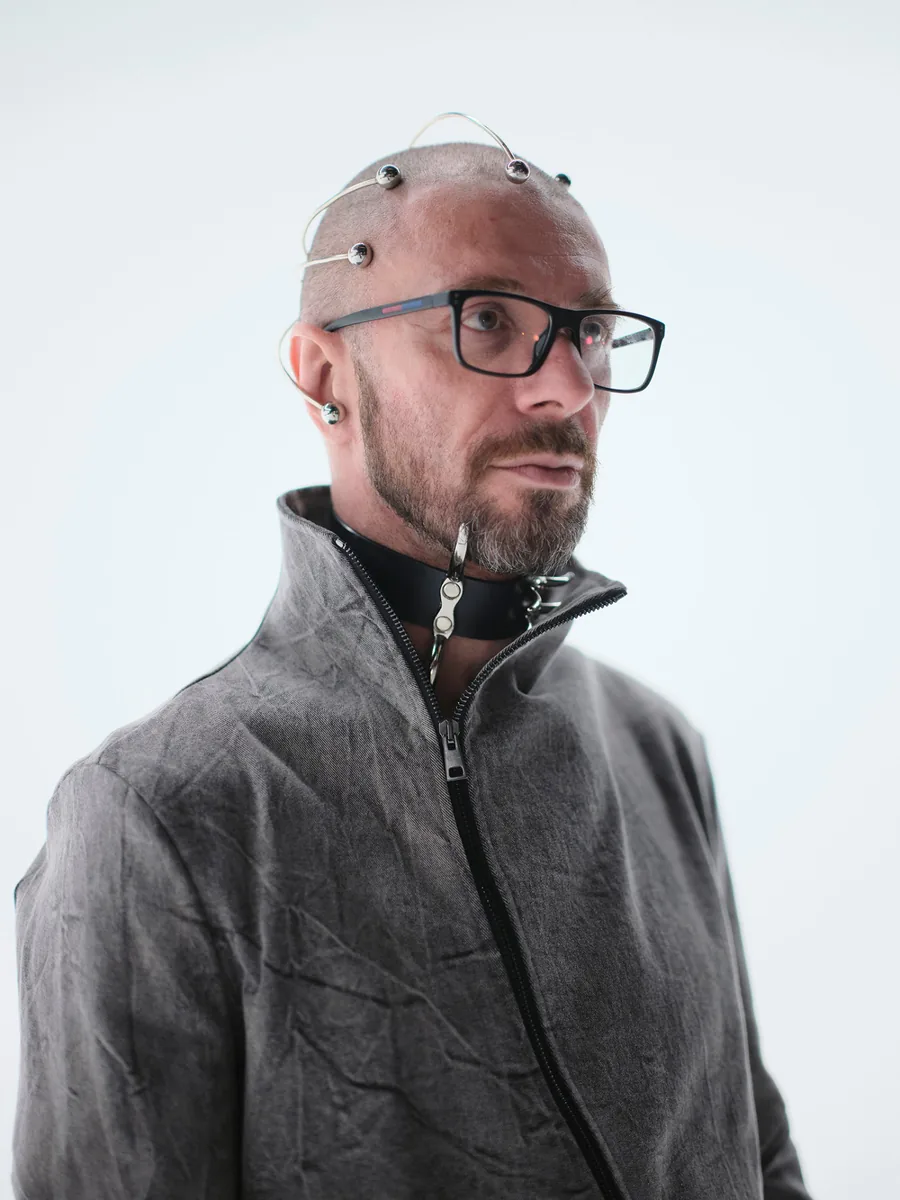
Stanislav Glazov
Media artist, technical director, founder of Hou2Touch
Stanislav started in computer graphics in 1998 with commercials and music videos, and has been teaching since 2001: Maya at RealTime School in Moscow and at SAE Institute in Munich, Houdini at Scream School, CG Event and the British Higher School of Art and Design (2008–2012). In 2009 he launched his own Houdini school, houdini-howto.com, and in 2014 he began teaching TouchDesigner. He was a character and VFX technical director on animated features at Caligari Film, Trixter and Scanline, working on rigging, cloth and hair pipelines, simulation and Maya API development. In 2010 he built the Houdini infographics pipeline for Kommersant TV, then moved into real-time visuals: video mapping at SILA SVETA and Visuals.108 (2011–2013) and, from 2013 to 2019, his own studio Licht.Pfad. He made the first Hou2Touch course in 2020 and built the school as a team in 2022. More than 2,000 people have studied with him.
He built the media servers for three productions by Maxim Didenko: the immersive Black Russian (2016), the live interactive show Asmodeus (2018) and Tekst (2018, Yermolova Theatre), and the media server and live visuals for A Techno Ballet Odyssey by the Berlin Ballet Company at Kraftwerk Berlin (2024).
Interactive dance performances: Singularity with Valentin Tszin (2019; motion capture, Kinect, lasers), CTRL+SHIFT at Berlin Ballett (2020), Percepta (2022).
He performs live on modular synthesizers since 2015 and is a Certified Bitwig Trainer (2023).
AUTOVJ Machine, his own automatic VJ system (Tresor Berlin, 2020).
Shown at: Berlin Atonal · Ars Electronica · Mutek Montreal · Barbican · Berghain · Fête des Lumières Lyon · Unsound · Sonar Istanbul · L.E.V.
Worked with: Maxim Didenko · Berlin Ballet Company · Dasha Rush · Robert Lippok · Whitevoid
Companies and clients: Scanline · Trixter · SILA SVETA · Hyundai
Taught at: SAE Institute · Scream School · British Higher School of Art and Design · LPM Rome
Selected projects
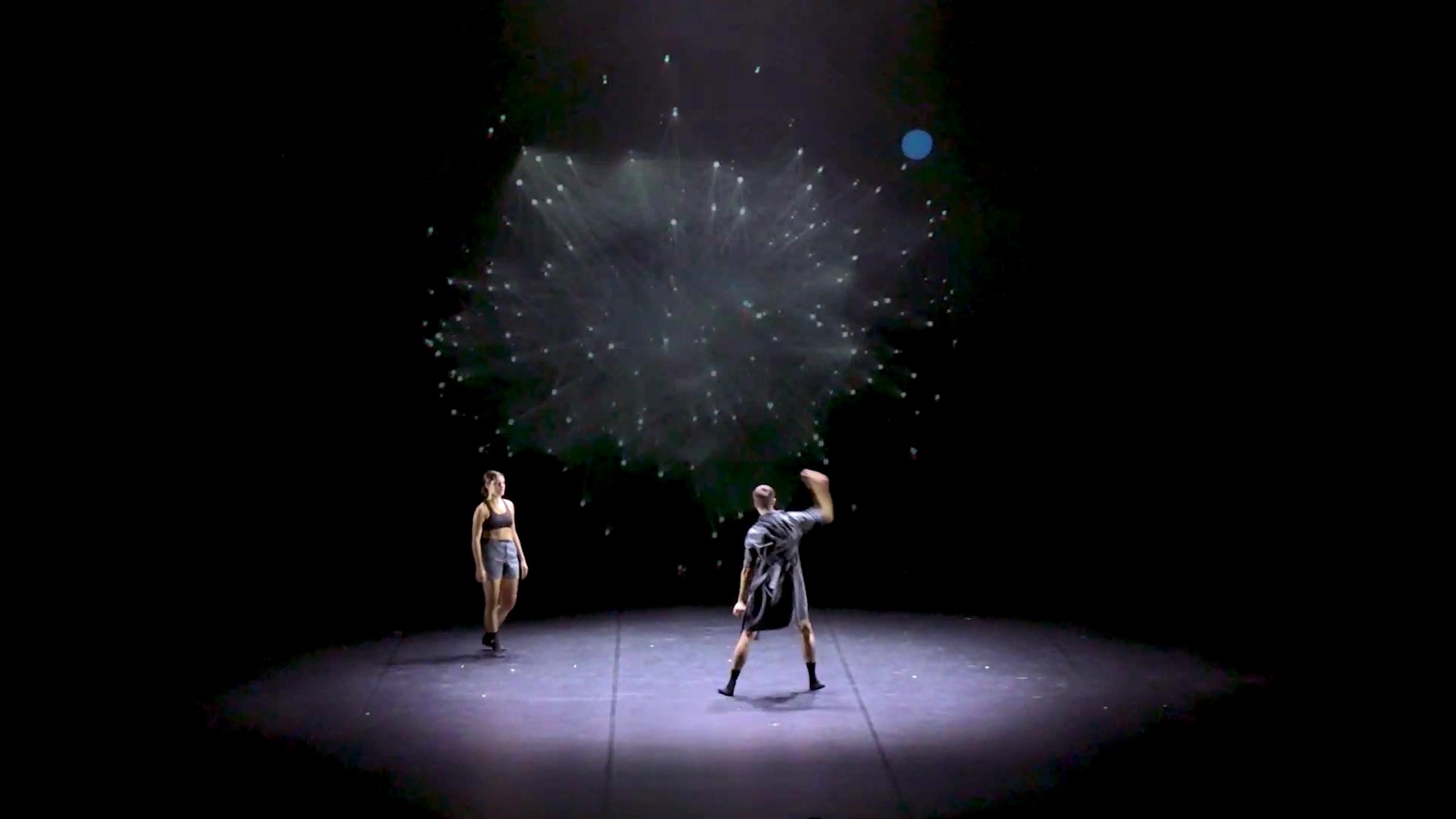
selected festivals & venues
Hou2Touch is an excellent curriculum which has been developed and continues to evolve over time. Stanislav and his team are great at providing guidance and assistance. I have explored TouchDesigner for many years yet Houdini only recently, and learned great new ways to use TouchDesigner with excellent Houdini integrations. What was of interest to me was a guided curriculum that looked deeply into the two programs together. I recommend Hou2Touch to folks who want to learn more about Houdini and TouchDesigner, and how to use them together for amazing results.
I truly appreciate what I am learning through this workshop, it is an edgy topic and it is a pleasure to learn it from a master, not an easy thing to find In standard education (talking from a design student perspective). An interesting thing that I find in this class is its artistic side in almost all of the participants that I had the opportunity to know a little from social medias
There is a very high skill level of knowledge in you’re lesson ... I hope is possible to find a way to use 100% of you’re knowledge during the course ... maybe a real (remote production) project could be interesting also
big thanks you, keep learning recording movie.
I really enjoy your teaching, it’s clear and you lay it all out with good examples. I really prefer to watch live and use the recording to work to as well. Enjoying what I’ve done so far and appreciating you checking in. You obviously want this to work well! Thanks Stan.
The other half - the things that I wrote down in my course notebook - are where the value of the course comes: These are techniques for using these tools, not just how the tools work. An example is using stamping to put the id number on something, then sort to randomize... or using multiple steps of attribute transfer and attribute wrangle to move data along fluidly. This second half is what I'm mostly after. The first half is available - though it takes some digging so it is nice to have it go over, but I think you could spend less time on it.
03 Interactive
- Access to all video recordings for 730 days
- The project files used in the lessons
- Access to the students' chat in Telegram
Learning Paths & Courses
Related courses and learning paths in the Hou2Touch curriculum.
- hou2touch1flagship
TouchDesigner · Houdini +5 Hou2Touch
113 h video · €2,650
- foundations1beginner
TouchDesigner · Houdini 01 Foundations
Learn Houdini and TouchDesigner from scratch: build procedural visuals, animate, composite, script with Python and render 3D in real time.
37 h video · €1,280
- procedural2intermediate
Houdini · TouchDesigner +2 02 Procedural 3D
Build procedural 3D, renders and simulations in Houdini and carry them into TouchDesigner for real-time visual systems.
35 h video · €1,560
- interactive3current
TouchDesigner · Houdini +3 03 Interactive
Build modular interactive TouchDesigner systems with Houdini assets, depth sensors, web-data visuals and sound tied to Ableton and Bitwig.
42 h video · €1,890
hou2touch 2025 (c)
go up ^ License Agreement go up ^ License Agreement RU Privacy Policy